Assigning someone the Org Reviewer role in MobileMind is only the first step to getting them set up. A common misconception is that this role automatically grants blanket access to all student submissions across the system.
The Org Reviewer role defines whose submissions a person can grade (anyone in the organization), but it does not dictate which courses they can grade.
-
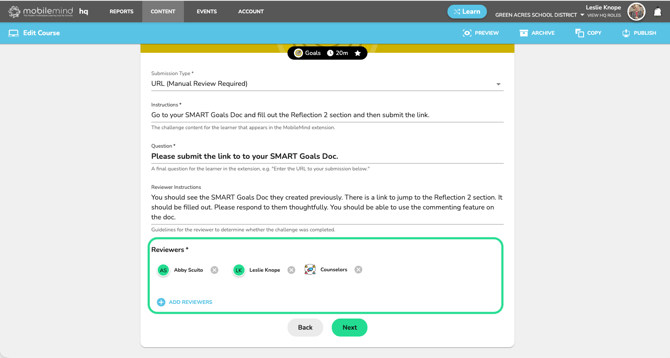
The Requirement: To review submissions, a user needs both the Org Reviewer role at HQ and a direct assignment as a reviewer within the specific course.
-
The Result: If an Org Reviewer is not explicitly assigned to a course, they will not see any submissions for it.
-
Please note, if you assign someone as a reviewer in a course, they will automatically be goven the Org Reviewer role.
Best Practice: Streamline Access with Reviewer Groups
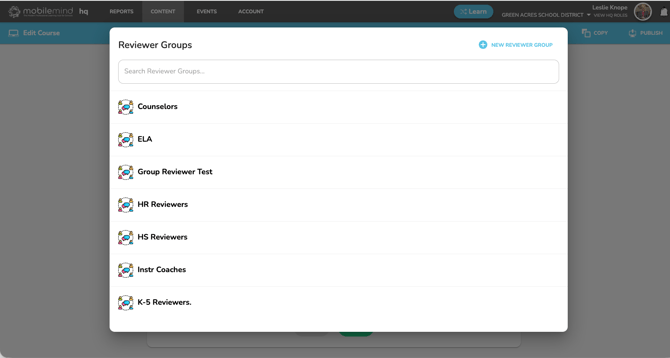
Manually assigning individual reviewers to every single course can be tedious, especially as your team changes. Instead, you can easily control and automate this access by using Reviewer Groups.
Real-World Examples of How to Use Groups:
-
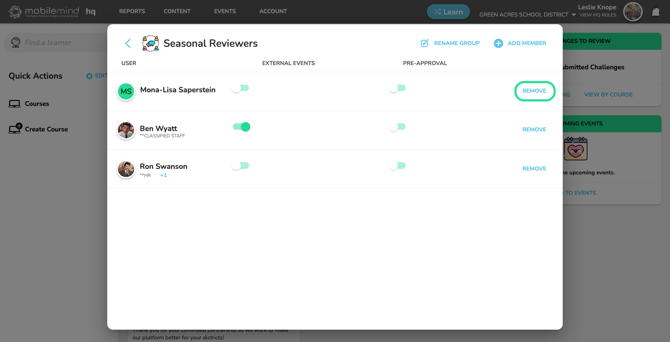
Seasonal Help (e.g., Summer Reviewers): Create a "Summer Review Team" group and assign it to all relevant courses. When summer ends, you don't have to go into every course to remove them—just remove the users from that single group.
-
Year-Round Support: Create an "Annual Reviewers" group. If a staff member leaves or a new one joins mid-year, you only need to update the group roster once, and their access across all assigned courses updates instantly.
How to Set It Up (Step-by-Step)
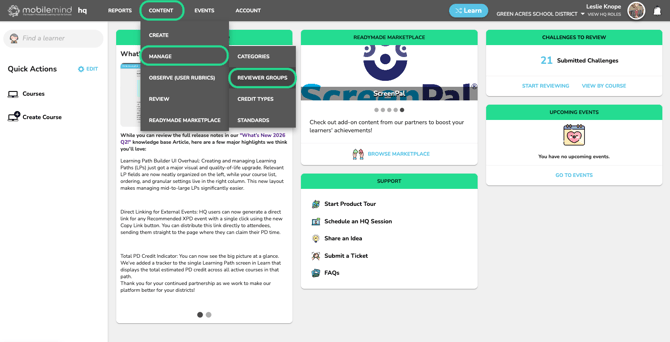
Create a Reviewer Group by going to Content > Manage > Reviewer Groups
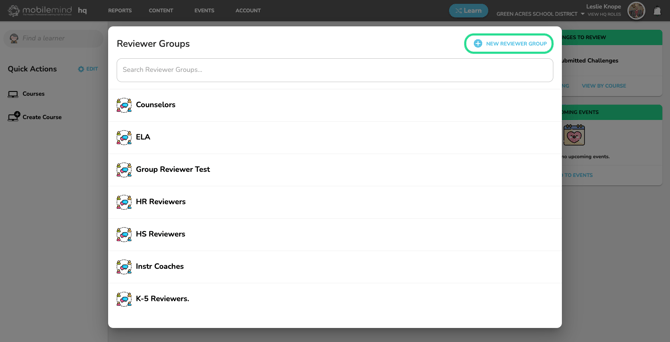
Click the New Reviewer Group button in the upper right.
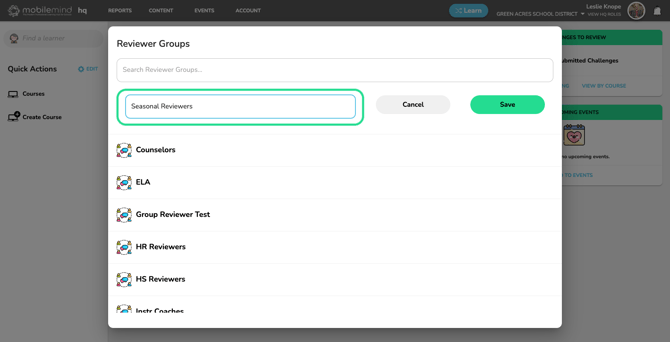
Enter a title for the reviewer group and click Save.
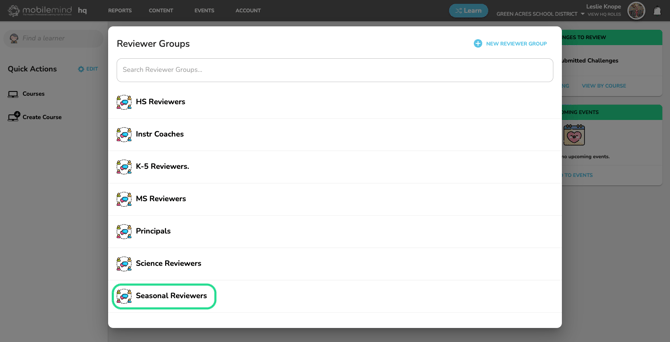
Click on the group to open it.
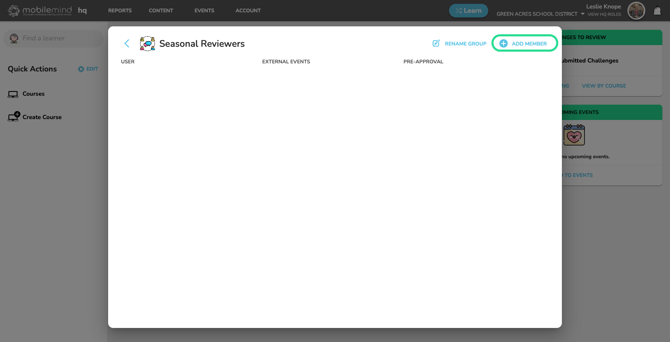
Click on the Add Member button in the upper right.
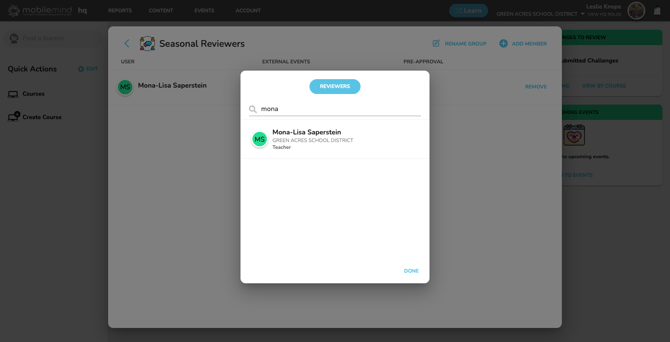
Type in the first OR name of the person you would like to add to this group. Once you click on their name, you will see their it appear in the background. Continue adding people to this group as needed and then click Done in the bottom right corner.
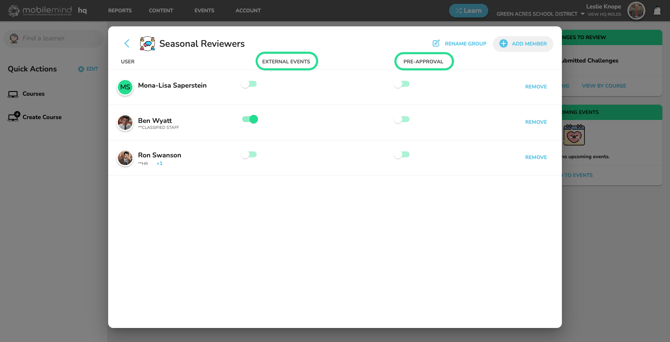
Now that you have members in the Reviewer Group, you can decide what you would like them to be able to review besides courses. You have the option to allow them to review External PD requests and/or Pre-Approval requests.
Now that you have your group created, you can add this group to your courses and pre-approval forms.
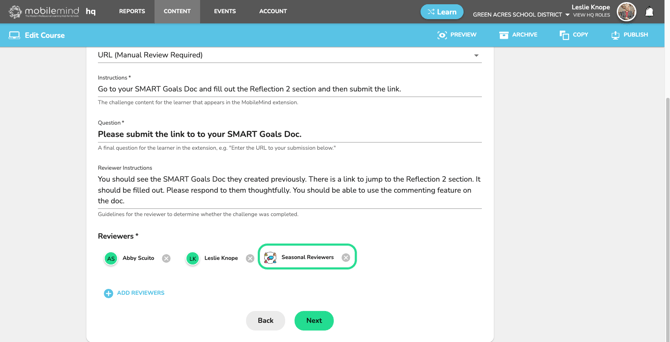
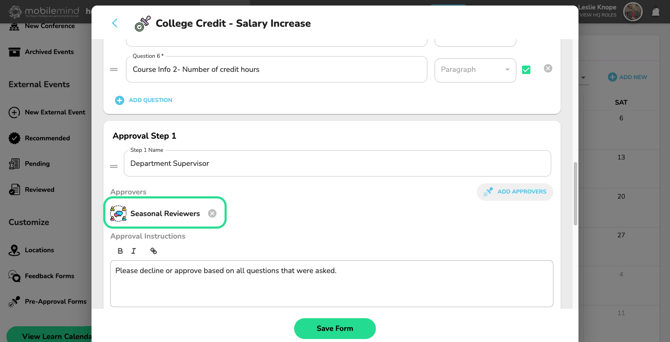
Moving forward, whenever you have staff turnover or temporary helpers, you never have to touch the course settings again. Just add or remove people from the Reviewer Group as needed!