
Decisions to make prior to beginning SFTP for rostering:
-
What fields do you want to include in your initial upload?
-
You have the option to ignore each of the columns when using the SFTP rostering method. You may choose to include groups in the initial upload and then ignore that column going forward and manage groups manually.
- You also have the option to include groups in the SFTP process, but ignore existing groups. This means SFTP will only ADD new groups for users, but not remove them from existing groups.
- Regardless of the fields you are choosing to import, please do not delete any columns or column headers on the template.
-
-
Do you want to include job titles in your upload?
- If you include job titles, they must match the job title options in MobileMind. Click HERE for a list of available job titles.
- If you include job titles, they will still receive the "Welcome to MobileMind" email, but will NOT do the onboarding questions when they login for the first time. If you choose to do this, we suggest linking the Welcome to MobileMind course in your customized welcome email in Org Settings.
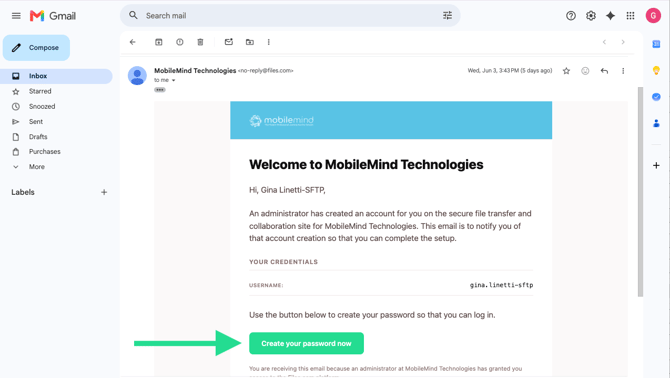
Once we complete the setup on our side, you will receive an automated welcome email from our file management partner, Files.com, with the subject line: "MobileMind Technologies - Welcome!". Please open that email and click the provided link to create your password and set up your login credentials.
Important to Note:
-
The email address you will use for this account needs to be one that is not use MobileMind as a typical user and will not have access to the content in MobileMind.
-
During the SFTP process, we will ignore the columns that are managed in Mobilemind: Organization Role, Job Title, Job Title Other, Field Reviewer Type, Subgroup Roles, Reviewer Groups.
-
If you prefer to manage groups manually, we can ignore the Subgroup column as well. If you do include groups, list them all in that cell, separated by commas with no spaces.
-
Please make sure there are no duplicate email addresses. If there are, the import will fail.
How to Access Your SFTP Account
- Log In via Web Browser: Visit files.mobilemind.io and log in using your newly created credentials.
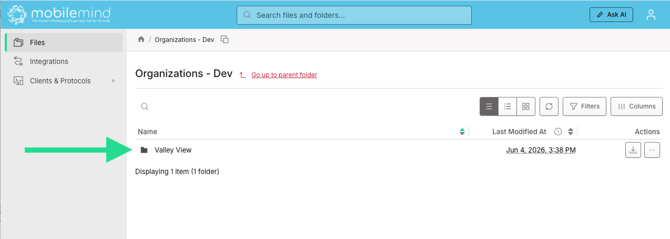
- Locate Your Folder: Once logged in, navigate to: Files > Organizations> [Your District Name].
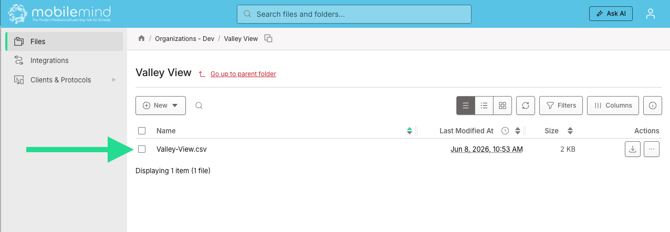
When you open that folder, you will see that we have already added your current user CSV to your folder.

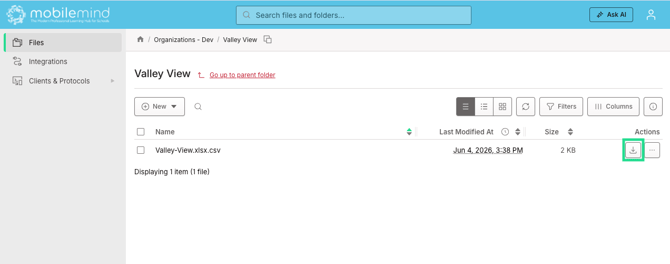
Caution: When viewing your file in Files.com, you may see an option to edit it in their online editor. Please do not use this feature. Instead, upload a new CSV file each time you need to make updates.
Option A: Manually Uploading a New Roster File
Best for large batch updates when a district exports a fresh spreadsheet from the internal HR system or directory and need to manually add a new file on Files.com. You will want to leave the old file there to preserve historical data.
*If you are doing this in addition to Option B, please let us know prior to doing so.
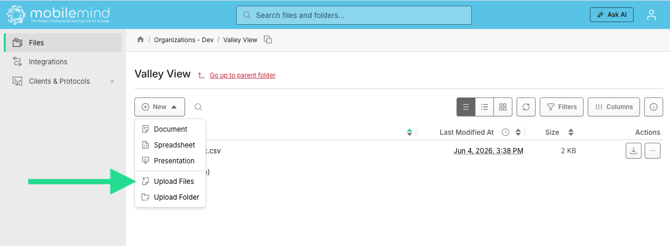
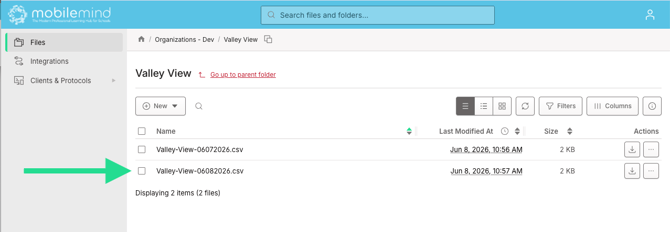
Option B: Automated Directory Sync (Hands-Free)
If you want your MobileMind roster to automatically stay up to date without any daily manual maintenance, your IT team can configure your HR System (or SIS) to run a nightly report and automatically push the updated CSV file to our Files.com server using an automated secure file transfer script (SFTP).
Important to Note:
The CSV will need to match the import template exactly. We will ignore the columns listed below (after the initial upload if you choose) since these are managed manually on the User page or via CSV import.
Organization Role, Job Title (optional), Job Title Other, Field Reviewer Type, Subgroups, Subgroup Roles, Reviewer Groups
Important Roster & Sync Notes
-
The CSV will need to match the import template exactly. We will ignore these columns since these are managed manually on the User page or via CSV import. Organization Role, Job Title (optional), Job Title Other, Field Reviewer Type, Subgroup Roles, Reviewer Groups.
-
Event personnel roles do not need to be managed through SFTP as they are automatically given that role when they are assigned as personnel to an event.
-
Data Format: Please ensure you use the exact CSV format and column templates found on your MobileMind user import page. Do not delete any columns or column headers.
-
If you would like to manage your groups manually, we can ignore that column as well.
-
Processing Schedule: MobileMind automatically scans your folder for new uploads once per day. Roster adjustments will be processed early the following morning at approximately 7:05 AM Eastern Time.
-
Job titles are automatically chosen based on how the users answer the questions when they login for the first time. However, job titles can be managed via SFTP, but only if they match the job titles in MobileMind.
-
If you have chosen to ignore the Job Title column for SFTP and want to make a larger batch of changes to job titles, HQ roles, or groups, you would do so manually using the import feature on the Users page in HQ.