The Summative option for observations and walkthroughs feature in MobileMind will allow you to have an observation cycle for the school year. The components are as follows:
-
Self-Assessment (entered by teacher)
-
Professional Objective - Focus Area(s) and goal (entered by teacher)
-
Observation/Walkthrough Rubrics (entered by admin/observer)
-
Proof & Artifacts (uploaded by teacher)
-
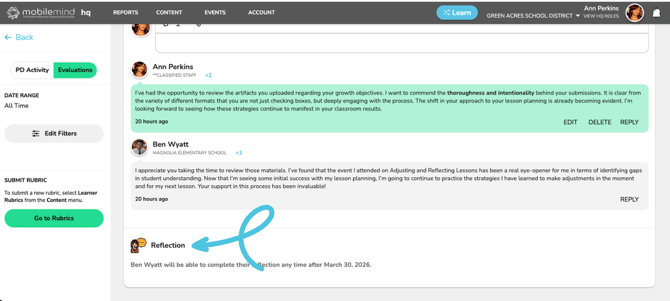
Notes & Discussion (entered by both teacher and admin/observer)
-
Reflection (entered towards the end of the school year)
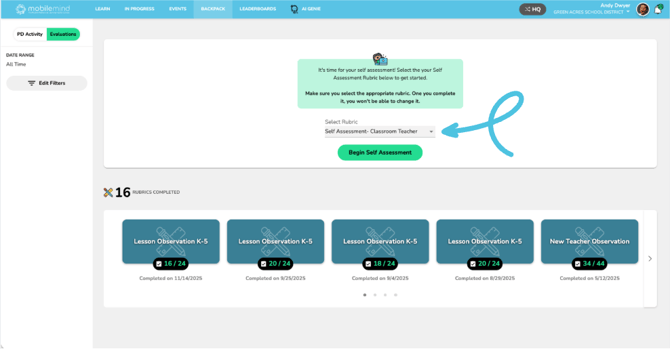
The first step is to create the rubric your learners will use for their Self-Assessment. If you plan to use different rubrics for different roles, label each one clearly so teachers can easily find the correct version. Once your rubric is created, learners will see the Self-Assessment option on the Evaluation page of their Backpack.
-
To learn how to create a rubric click HERE.
- To learn the process your learners will go through, click HERE.
After learners complete their Self-Assessment, you can access their responses by searching for their names from your HQ Dashboard.
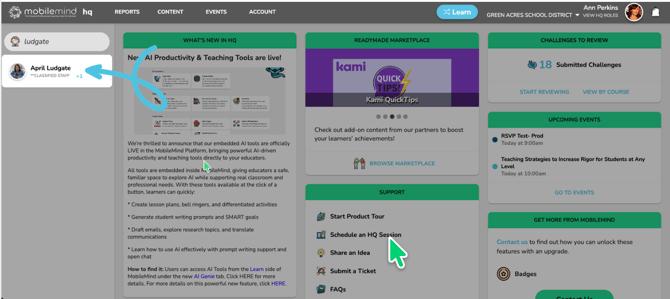
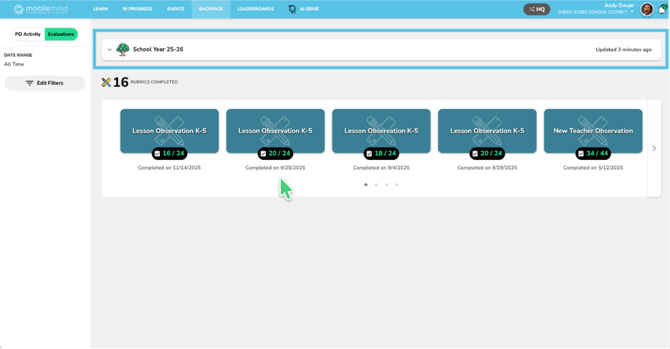
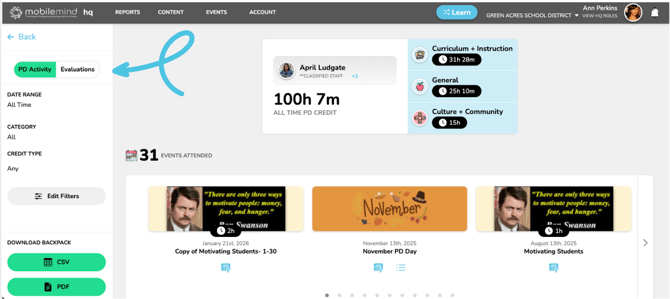
Click on the Evaluations button on the left sidebar of the learner's backpack page.
Click the arrow next to the School Year field to expand this section
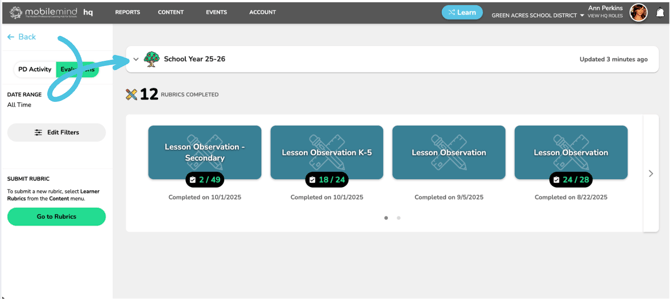
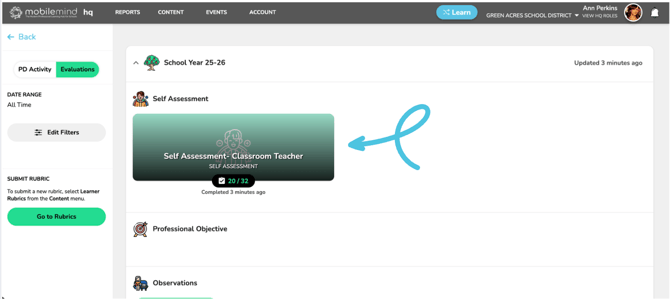
Then, click the Self-Assessment entry to open it and review the teacher’s responses.
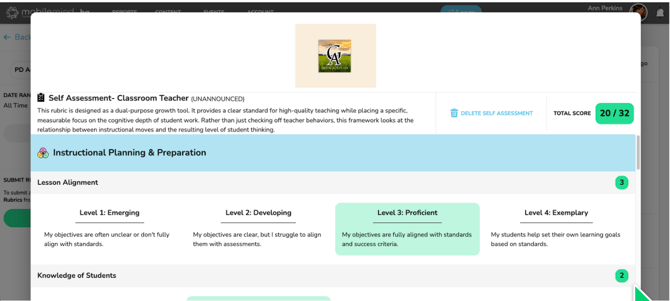
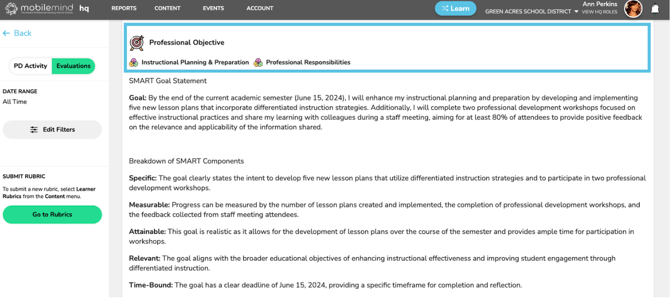
After the learner completes their Self-Assessment, they will proceed to the Professional Objective section, where they select one or more domains from their self-assessment to serve as their focus area(s) for the school year.
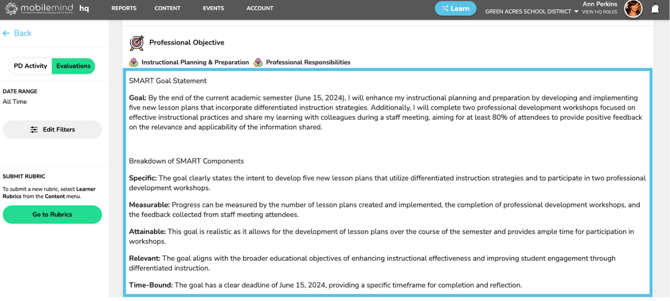
They will then use the text box to enter details for their professional objective. We recommend that the learners use the MobileMind Genie AI Tools to help them write a SMART Goal.
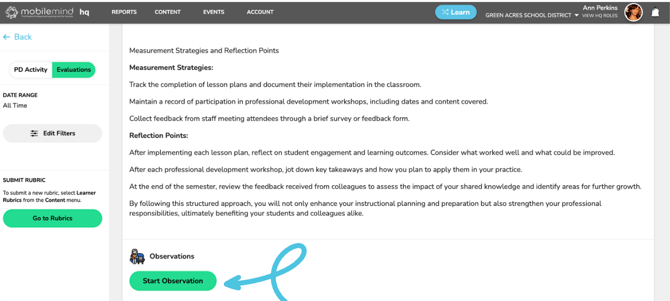
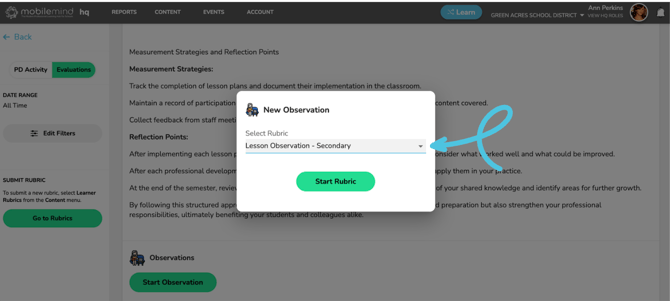
When you are ready to do an observation, you will click the green "Start Observation" button, select the rubric you would like to use and begin filling it as you normally would.
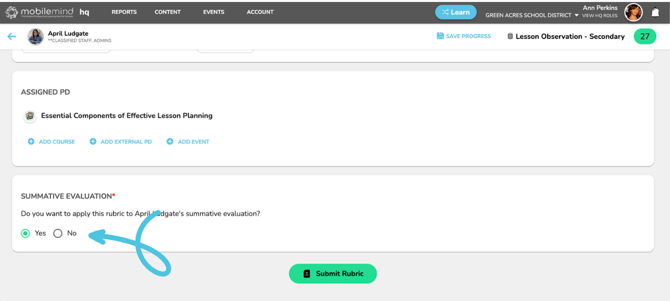
At the bottom of the rubric, you’ll choose whether to include it in the year-long summative section. If you choose not to include it, the rubric will still appear in the teacher’s MobileMind Backpack, but it will not display in the School Year section.
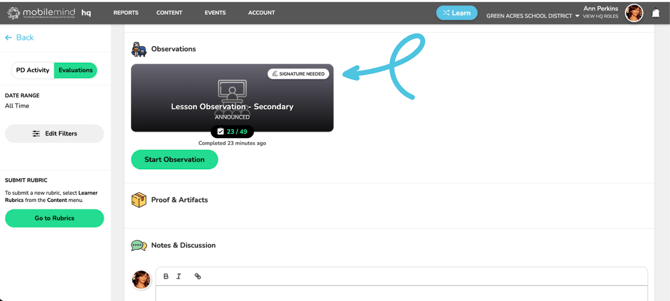
You will now see the rubric in their Year Long Summative section with the Awaiting Signature indicator.
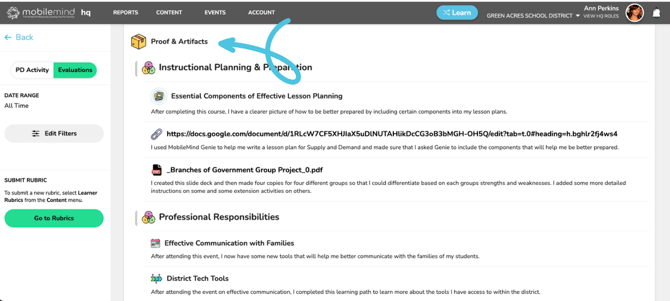
Learners can also upload artifacts as evidence of their progress toward their goal(s) and link them to the specific focus area they selected. They may choose artifacts from MobileMind content, external events, or materials they have created themselves.
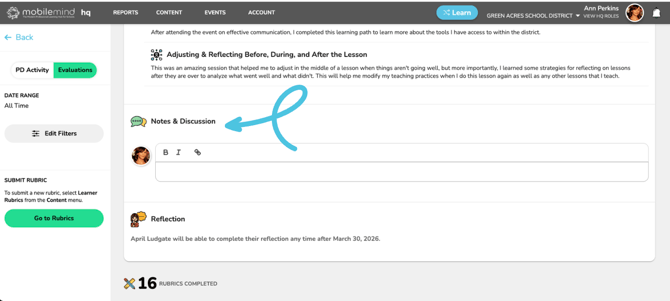
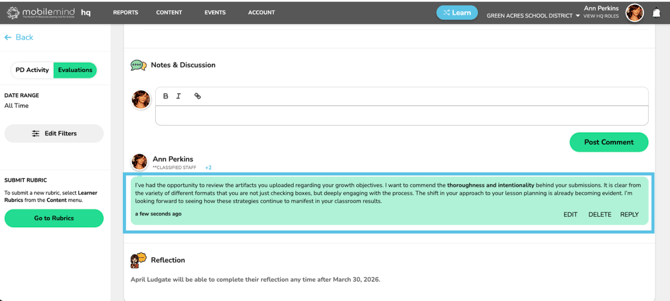
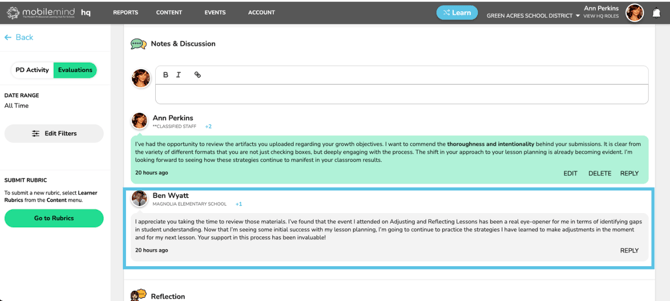
In the Notes & Discussion section, either you or the learner can start a comment, and both of you can reply to continue the conversation.
Towards the end of the school year, the Reflection section will open, and learners will complete the same rubric they used for their original self-assessment.