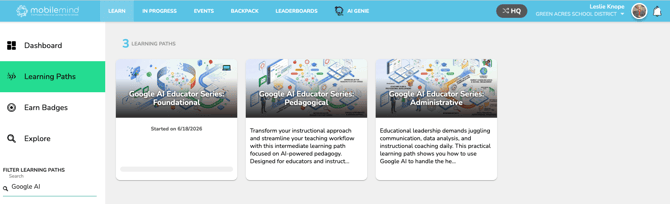
Google AI Educator Series
The Google AI Educator Series is now available in MobileMind! This collection includes three learning paths and 14 micro-courses that support educators in developing AI skills—from foundational concepts to creating lessons with Gemini, using Notebook LM and Vibe Coding, and evaluating AI-generated content. Learners have the opportunity to earn Google AI Educator badges have the upon completion of each course.
Visit the Marketplace to add the Google AI Educator Series and enable it for your learners today!
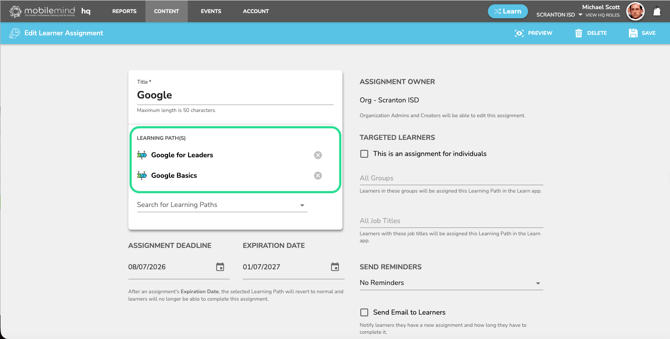
Multiple Learning Paths in an Assignment
You can now use multiple learning paths in one assignment, allowing you to combine several curated sequences of courses into a single learning experience. This makes it easier to assign differentiated options for various roles or topics, support longer-term initiatives by grouping related learning paths together, and give learners clear, structured choices while still tracking their progress within one consolidated assignment.
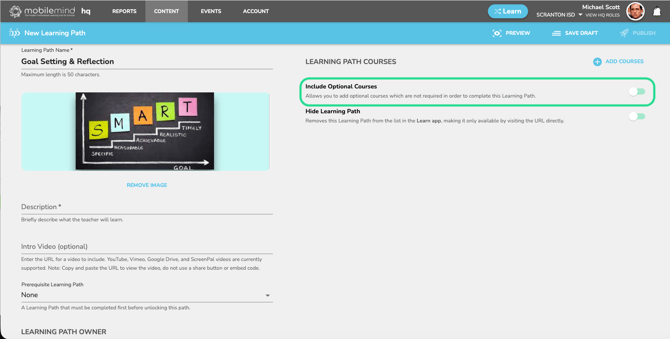
Optional Courses in Learning Paths
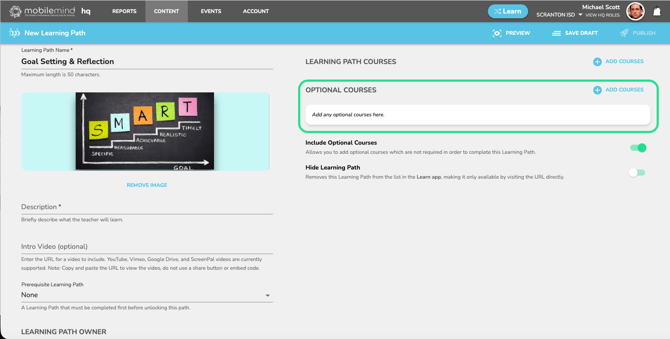
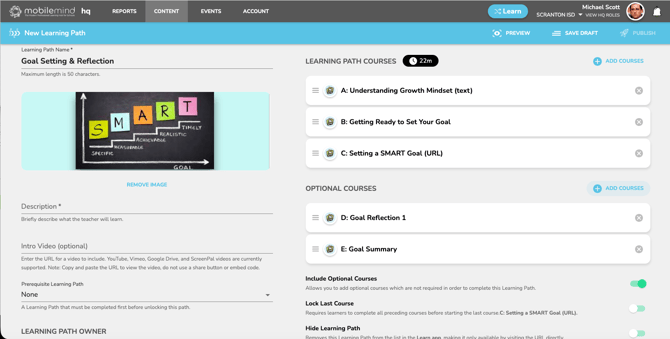
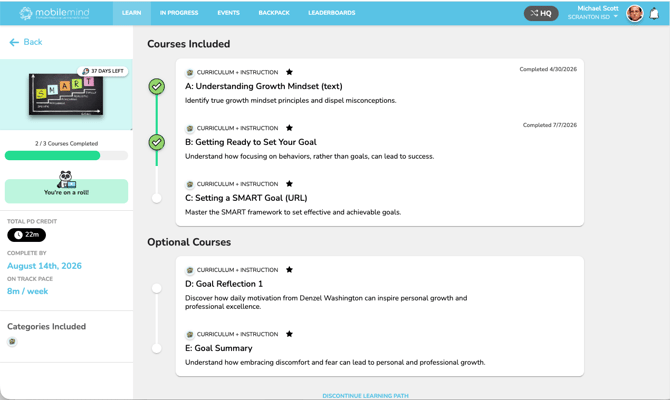
Select any courses in a learning path that you want to designate as optional. These courses will still appear for learners as recommended or enrichment opportunities, but they are not required for completion. Learners can choose whether or not to take these optional courses based on their interests or needs, and the learning path will still be marked complete as long as all required courses are finished.
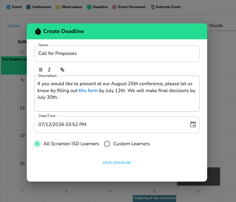
Deadline Option in Events
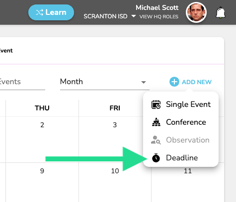
Use this feature to display important deadlines on learners’ Events calendars so key dates are visible alongside their other sessions and activities. These deadline entries behave much like announcements: they appear as read-only calendar items and do not require learners to RSVP, check in, or complete any additional steps. Learners simply see the date, time, and details you provide and can click an attached link if one is included. This helps keep due dates front and center without adding extra tasks or workflow complexity.
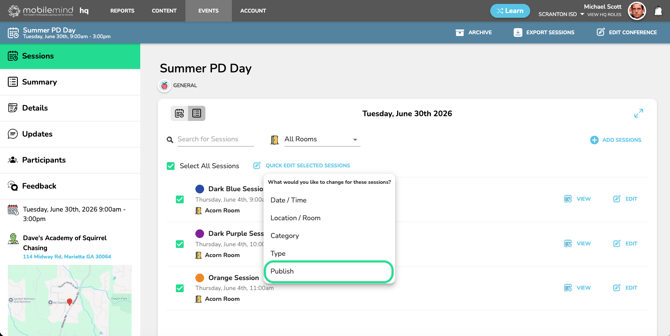
Bulk Publish Conference Session
You can now bulk publish sessions with just a few clicks. From the session list view, use the checkboxes to select the sessions you want to publish, click the Quick Edit button, and then choose Publish.
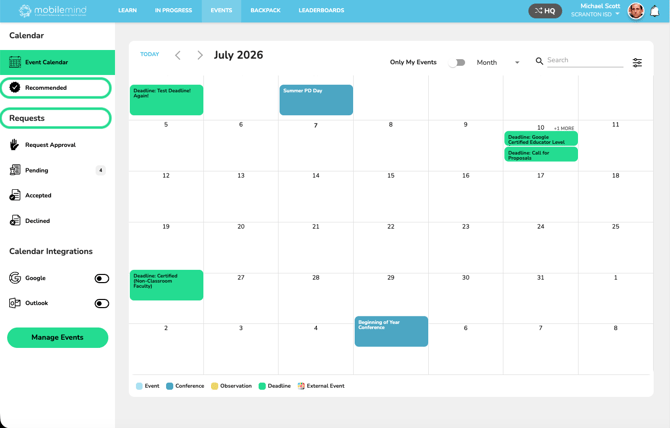
Renamed External Events to Requests on Left Sidebar
To improve clarity, we have renamed the “External Events” section in the left sidebar of the Events page to “Requests” and moved Recommended Events higher in the menu. You will now find Recommended Events directly under the Events Calendar button on the left sidebar.
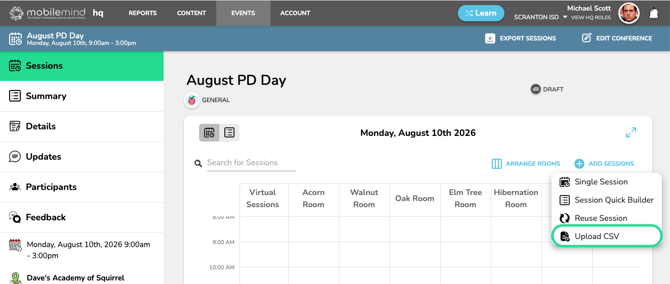
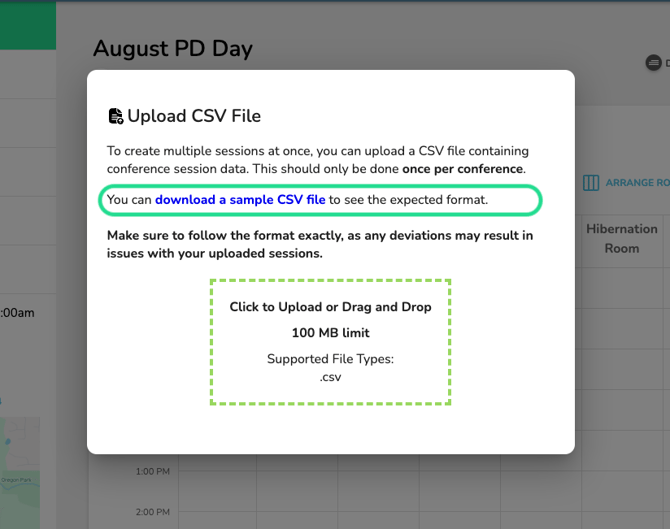
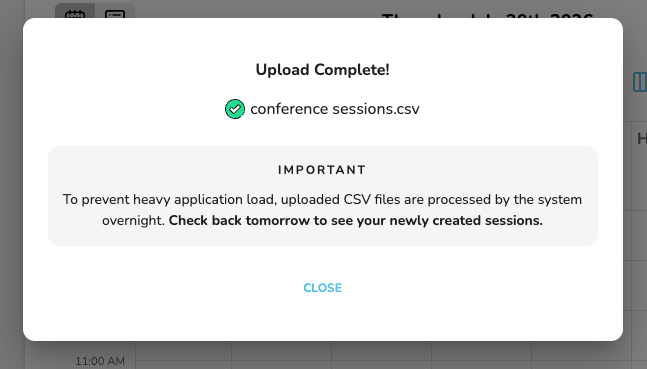
Conference Session CSV Upload Conference Session CSV Upload
You can now upload conference sessions using a CSV file. There are a few important things to note:
-
Each conference supports only one CSV upload; after that initial import, any changes must be made with the Quick Edit feature or by editing sessions individually.
-
The CSV must match the template format exactly, especially for date/time and personnel fields. When you click Add Sessions and select Upload CSV, you will see a link to download the required template.
-
Because this import includes many fields for each session, the processing runs overnight.
-
Once your sessions are imported, they will be published automatically. To prevent them from appearing to learners before you are ready, be sure to save the conference itself as a draft when you first create it.
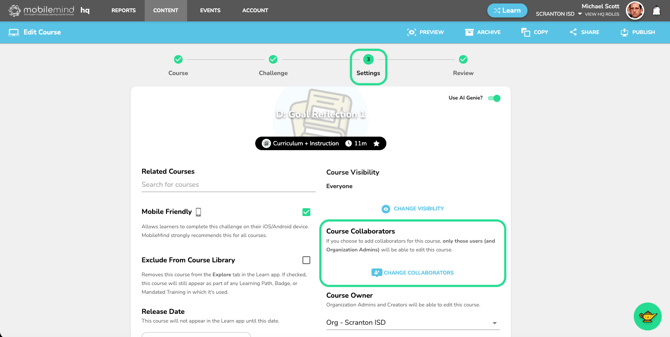
Choose Collaborators on Courses
When creating a course, you can now specify who is allowed to collaborate on it. If you add collaborators, only those users (along with Org Admins) will have permission to edit the course.
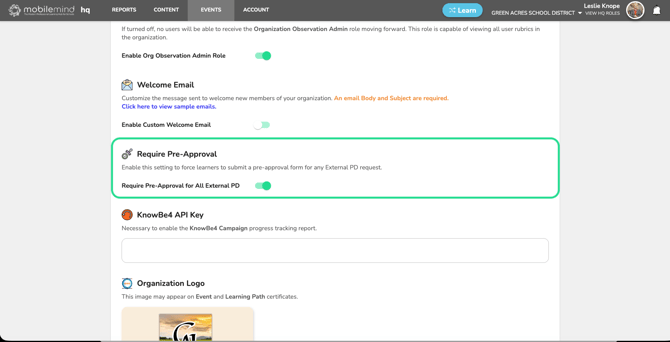
Require a Pre-Approval form for ALL External PD Credit Requests
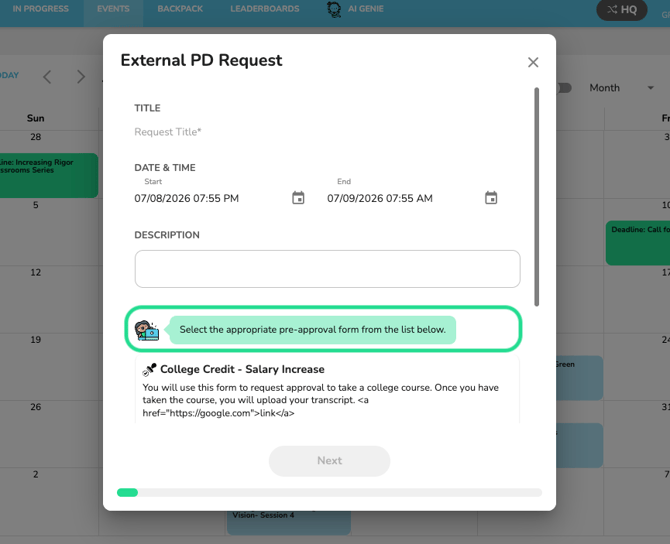
From your HQ Dashboard, you can now use Org Settings to require Pre-Approval for all external PD credit requests.
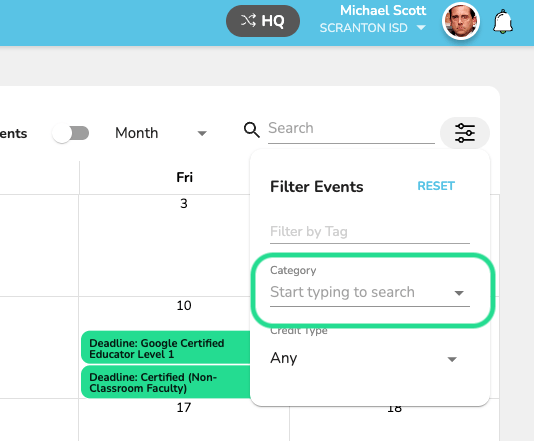
Filter by Category on Events
On the Learn Events page, we have added more filtering options. The latest addition is a category filter, allowing learners to narrow events by even further.