
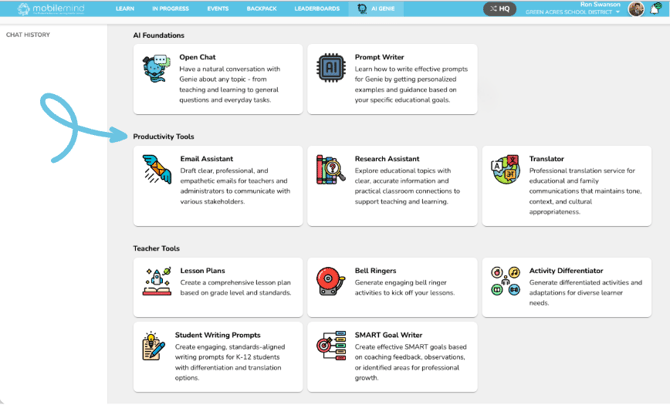
Productivity Tools
-
Email Assistant- Draft clear, professional, and empathetic emails for teachers and administrators to communicate with various stakeholders.
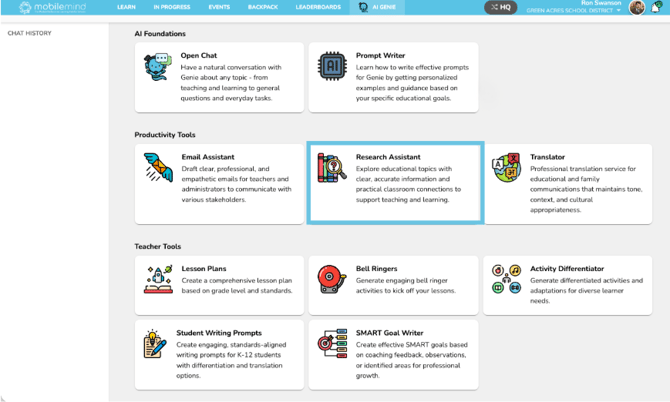
- Research Assistant- Explore educational topics with clear, accurate information and practical classroom connections to support teaching and learning.
- Translator- Professional translation service for educational and family communications that maintains tone, context, and cultural appropriateness.
Email Assistant- Draft clear, professional, and empathetic emails for teachers and administrators to communicate with various stakeholders.
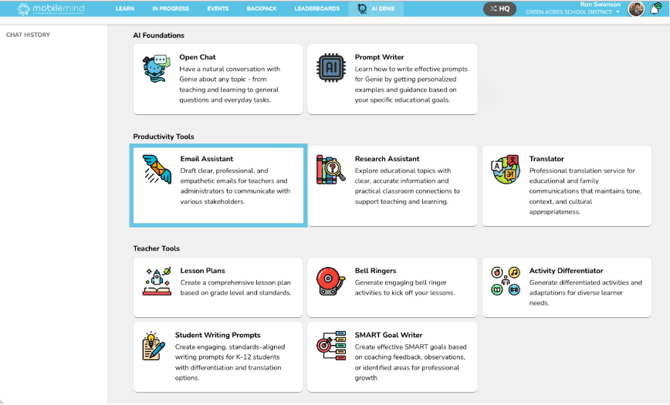
Under Productivity Tools, click the Email Assistant widget.
Choose the audience for you email that you will be writing.
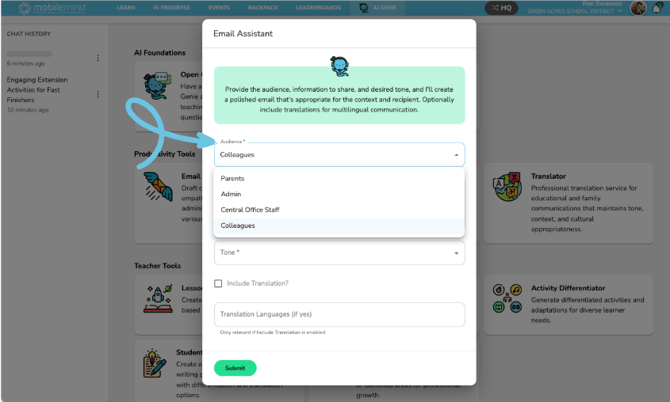
Enter the information you would like to include in this email, such as the purpose of your message, key details or updates, any required actions or deadlines, etc.
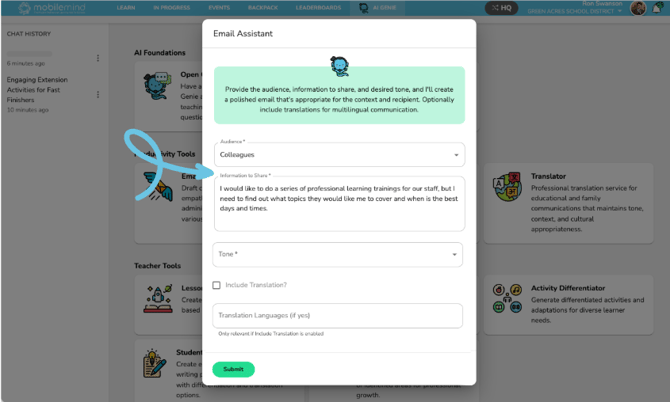
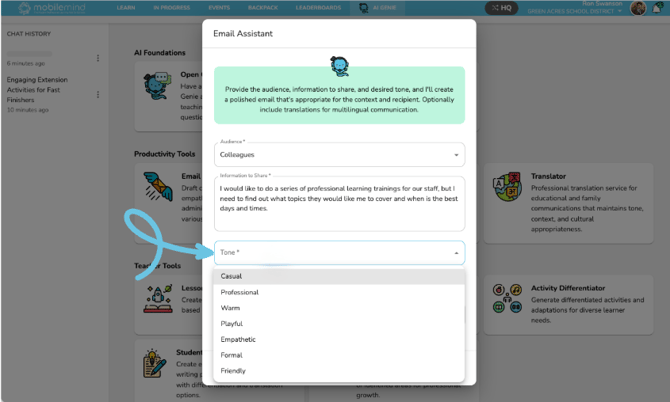
Choose what type of tone you would like to convey in your message (for example, casual, professional, empathic, friendly, etc) so the email matches the needs and emotions of your audience.
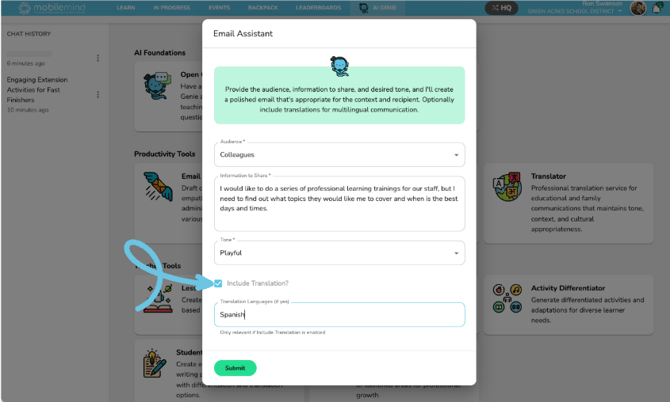
You can check the box for translation if you need the email to be in a different language. Once you check the box, you will need to choose the language for translation from the dropdown menu so the Genie's Email Assistant knows which language to use. The tool will then generate your draft in the selected language while keeping the original meaning, tone, and level of formality appropriate for your audience—for example, when emailing families who prefer Spanish or staff members who speak another language.
Genie will create an initial draft for you. After you review it, you can share any changes or adjustments you’d like, and Genie will provide an updated version based on your feedback.
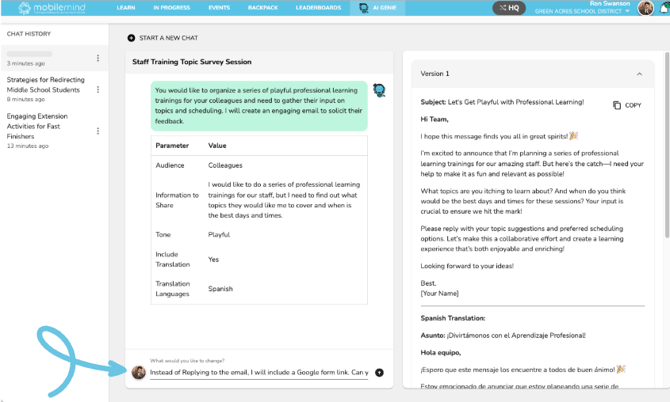
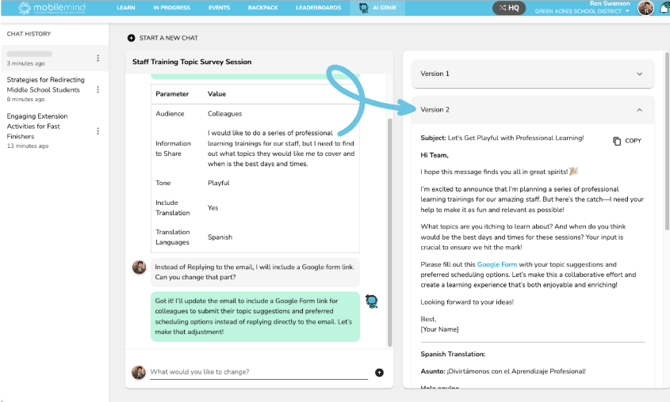
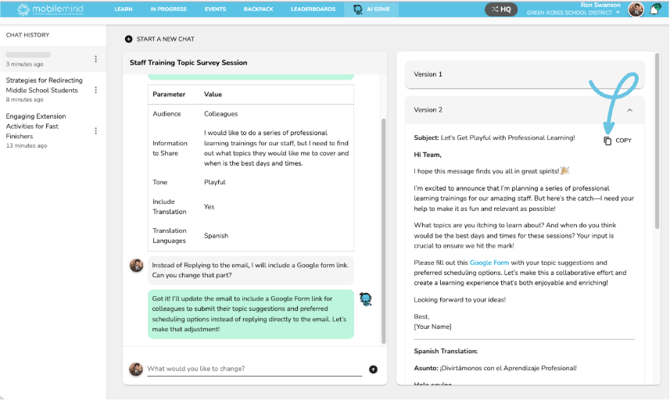
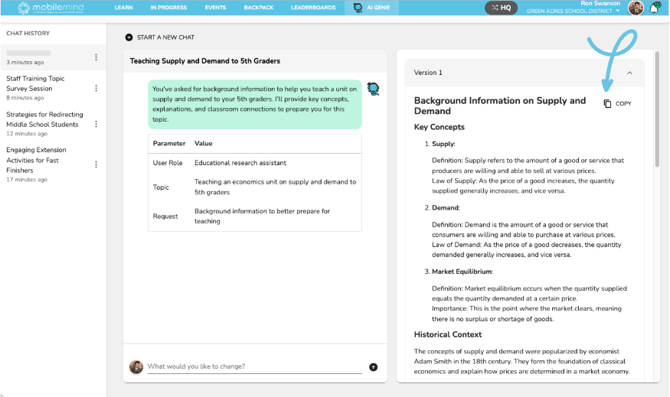
Once you’re satisfied with the draft Genie created, click the copy button in the upper-right corner of the version you want to use.
Research Assistant- Explore educational topics with clear, accurate information and practical classroom connections to support teaching and learning.
Click on the Research Assistant widget under Productivity Tools.
Ask Genie about any topic you would like to explore—such as instructional strategies, classroom management, assessment ideas, technology integration, or family communication—and Genie will provide clear, accurate information with practical examples you can use in your school or district.
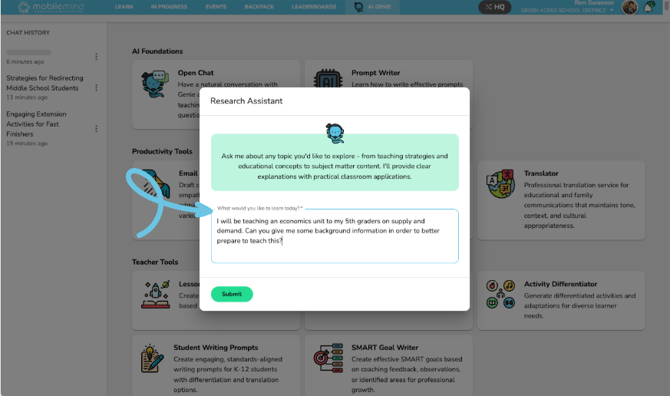
Genie will respond with background information, historical context, and current best practices related to your topic, along with definitions and explanations of key concepts. If you need more detail, alternative perspectives, or examples tailored to specific grade levels, content areas, or roles, you can ask follow-up questions to have Genie deepen, clarify, or extend the information so it’s more actionable for your school or district context.
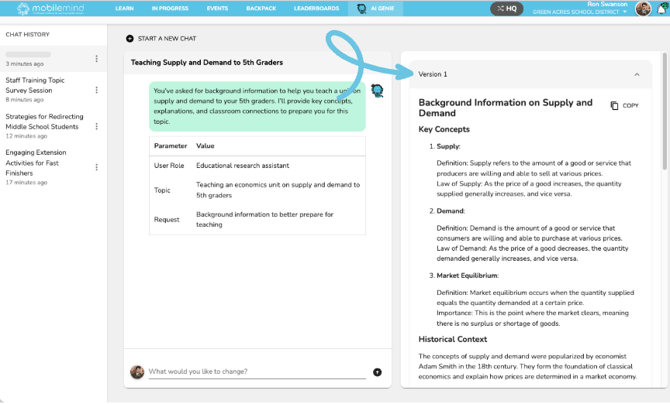
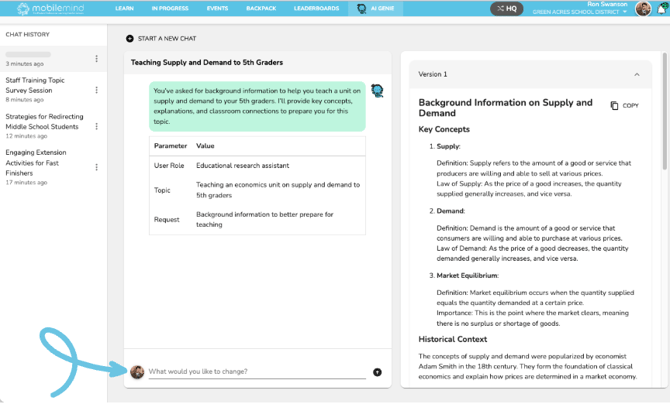
Once you’ve gathered all the information you need, click the copy button in the upper-right corner of the response you’d like to use.
Translator- Professional translation service for educational and family communications that maintains tone, context, and cultural appropriateness.
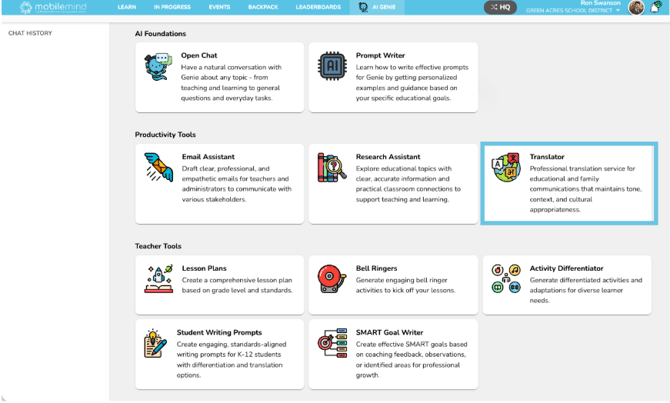
Click the Translator widget under Productivity Tools.
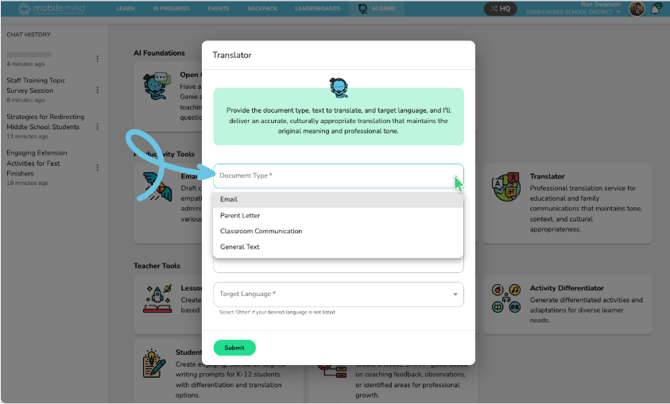
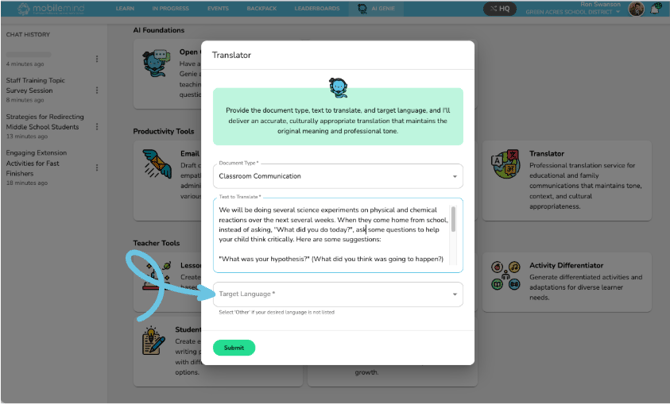
Choose the type of document you would like to have translated.
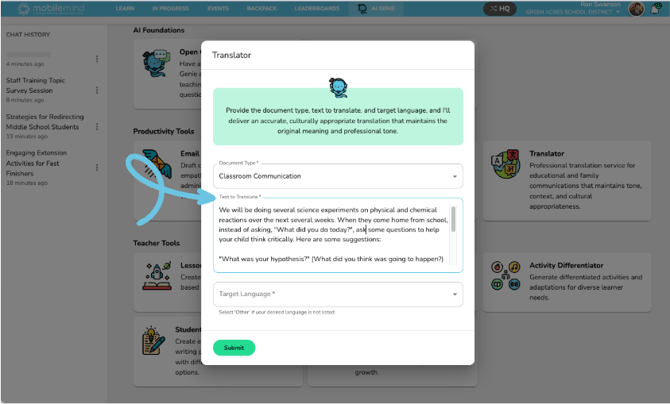
Paste or type the content you need translated.
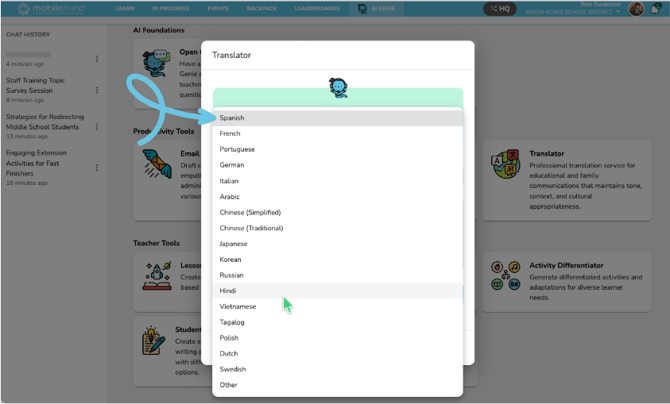
Click the dropdown arrow to choose the target language.
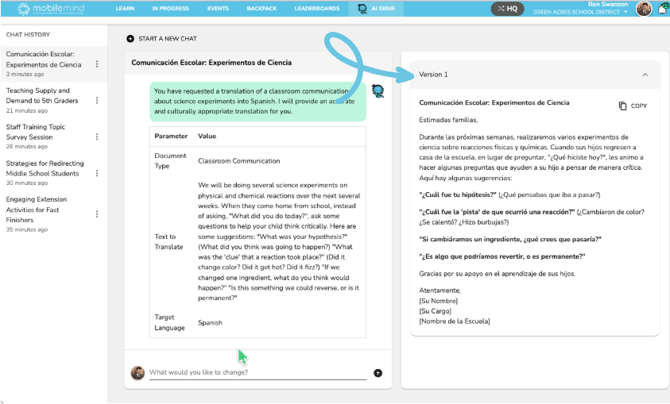
You will see the original text on the left and the translated version on the right. If the translation meets your needs, click the copy button in the upper-right corner of the version you want to use.
Want to learn more about Genie's AI Tools?
-
Genie's AI Tools (general information)
-
Genie's AI Foundations (Open Chat and Prompt Writer)
-
Genie's Teacher Tools (Lesson Plans, Bell Ringers, Activity Differentiator, Student Writing Prompts, SMART Goal Writer)